If you use Notion as your main workspace, you've probably run into the Notion Web Clipper — the browser extension that saves web pages directly to your Notion databases. It's simple, free, and does exactly what it says.
This guide covers everything you need to know about the Notion Web Clipper: how to set it up, how to get the most out of it, where it falls short, and what tools complement it when you need more than basic clipping.
Whether you're here to learn how the clipper works or you've already outgrown it and want to know what's next, this is the right place to start.
What Is the Notion Web Clipper?
The Notion Web Clipper is a free Chrome extension built by Notion. It lets you save web pages, bookmarks, or selected text directly into any Notion database from your browser toolbar.
No copy-pasting. No switching tabs. No manual data entry.
You install it once from the Chrome Web Store, connect it to your Notion account, and from that point on you can clip pages directly into your workspace in a few clicks.
For anyone building a research database, reading list, swipe file, or content archive in Notion, the clipper solves a real problem for Notion-heavy workflows.
How to Use the Notion Web Clipper (Step by Step)
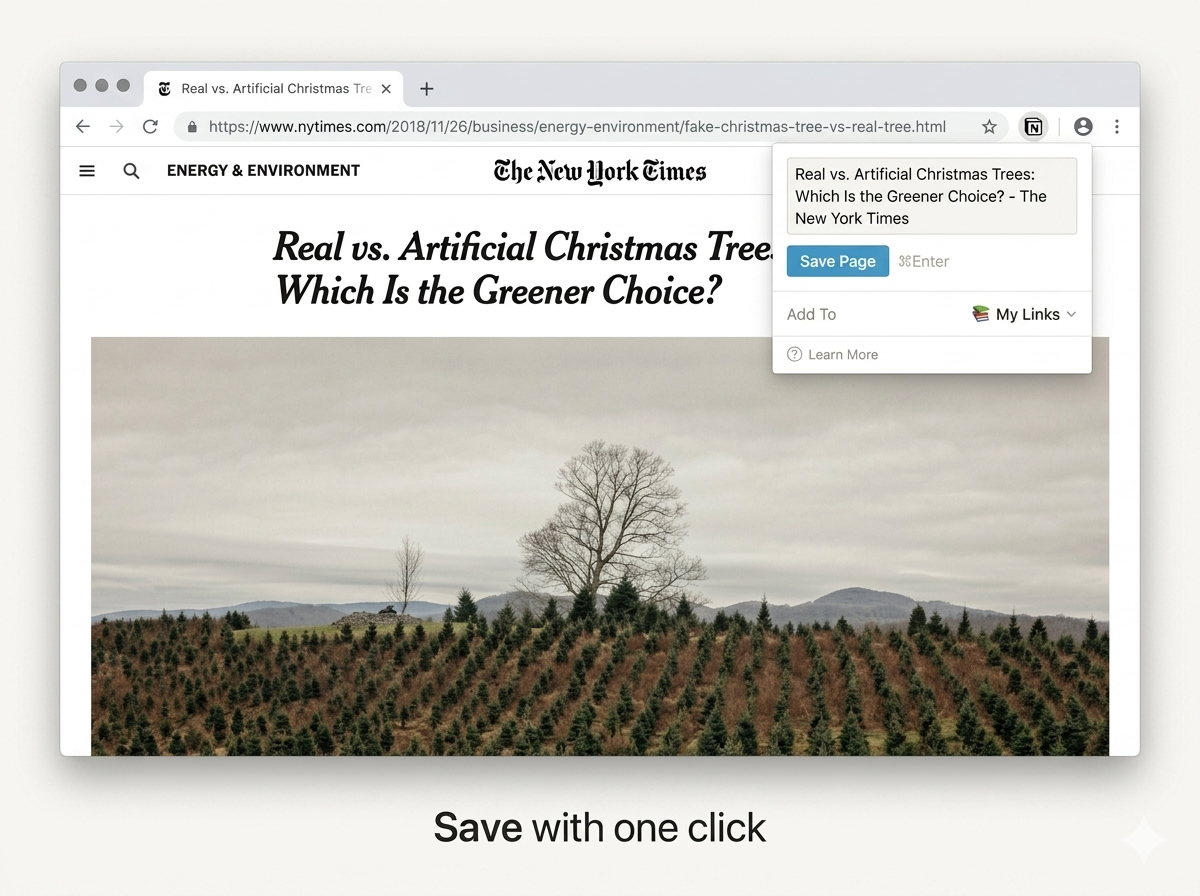
Setup takes about two minutes.
1. Install the extension
Go to the Chrome Web Store and search for "Notion Web Clipper." Click Add to Chrome. The Notion icon will appear in your browser toolbar.
2. Log in to your Notion account
Click the Notion icon in your toolbar. You'll be prompted to authenticate using your Notion account credentials.
3. Open the web page you want to save
Navigate to any article, documentation page, research paper, or resource you want to clip.
4. Open the clipper popup
Click the Notion icon in your toolbar. If you use multiple workspaces, choose the correct one from the dropdown menu.
5. Select your database
Choose which Notion database you want the content saved to. If your database has properties like tags, dates, or statuses, you can set those before saving.
6. Click "Save page"
The page is now saved into your selected Notion database.
Tips for Getting More Out of It
Use keyboard shortcuts
Use:
Cmd + Shift + Non MacCtrl + Shift + Non Windows
This opens the clipper quickly without touching the toolbar.
Set a default database
If most of your clips go into the same database, pin it as your default destination. This removes extra clicks every time you save a page.
Clip selected text only
Highlight a specific section of a web page before opening the clipper. Instead of saving the full article, the extension will only capture the highlighted text.
Use it as a bookmark saver
If you only want the URL saved, you can clip the page and remove the body later in Notion. This works well for lightweight bookmarking workflows.
What the Notion Web Clipper Does Well
The Notion Web Clipper gets the basics right.
Saves full pages reasonably well
Most articles and blog posts transfer into Notion with clean formatting. Headings, images, and paragraph structures usually remain intact.
Integrates directly with databases
You can assign:
- Tags
- Statuses
- Dates
- Priorities
…before saving the page. That makes it much more useful than simple bookmarking tools.
Completely free
There's no paid plan, no clip limits, and no credit system. If you already use Notion, the clipper costs nothing.
Works on most websites
Documentation, articles, tutorials, and research pages usually clip without major problems.
Minimal interface
The extension does one job and stays out of the way.
Notion Web Clipper Limitations
The clipper works well for capture. But capture is only one part of the workflow.
No AI summarization
The clipper saves raw page content. It doesn't:
- Generate summaries
- Extract key insights
- Auto-create notes
- Explain what matters
You still need to process everything manually afterward.
No automatic tagging
Every clip requires manual filing. If you save dozens of pages per week, those extra clicks add up fast across a week of heavy saving.
Complex pages clip poorly
Interactive layouts, tables, heavy CSS, and paywalled content often break during clipping. Some pages transfer cleanly. Others don't.
Weak search experience
Notion search relies heavily on exact wording. If you vaguely remember a concept but not the exact phrase, finding old clips can become frustrating.
No unified search across tools
Your clips live only inside Notion. They are disconnected from:
- ChatGPT conversations
- Claude conversations
- Uploaded PDFs
- External notes
- AI-generated research
No batch clipping
You can't save multiple tabs simultaneously. Every clip requires a separate action.
AI-Powered Alternatives and Complements
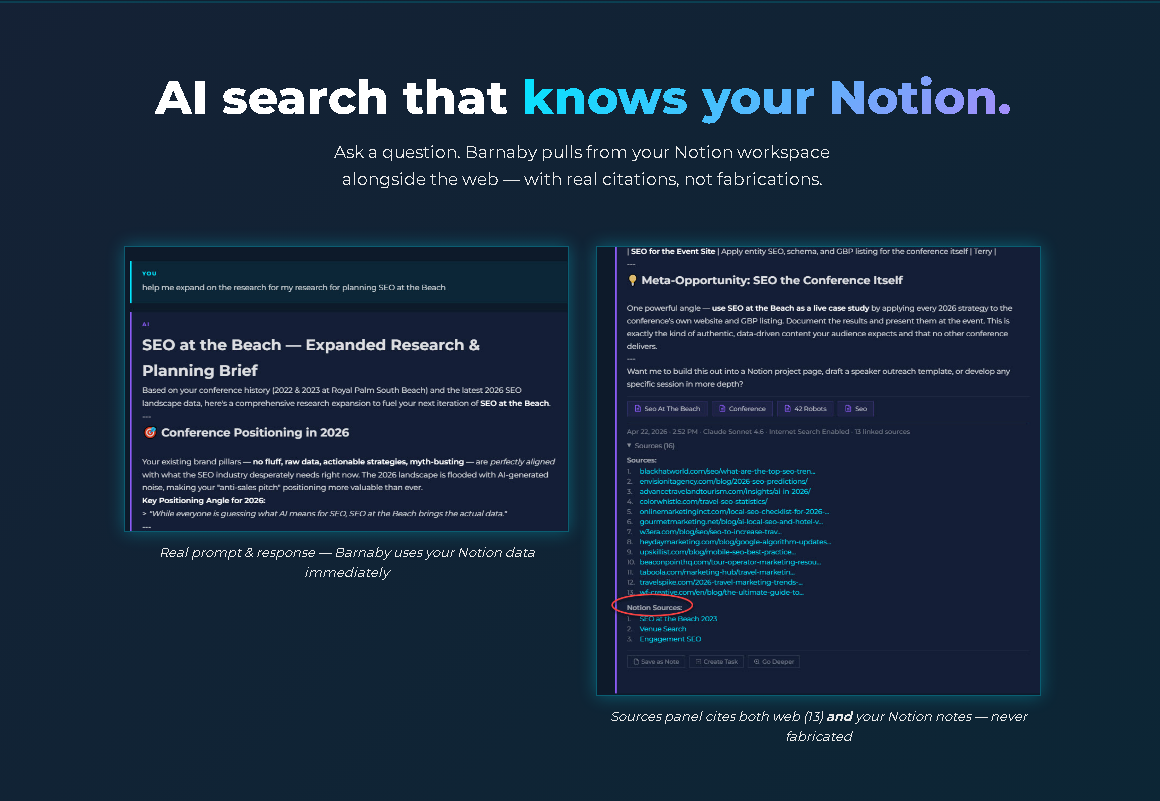
The tools below don't necessarily replace the Notion Web Clipper. Instead, they solve the next problem: finding, organizing, and connecting everything you've already saved.
Quick Comparison Table
| Tool | Primary Job | AI Features | Cross-Source Search | Cost |
|---|---|---|---|---|
| Notion Web Clipper | Capture into Notion | None | Notion only | Free |
| hk3k | AI workspace + search layer | Semantic search, auto-organized notes | Notion + ChatGPT + Claude + files | Free |
| Readwise | Highlights from books/articles | Surface old highlights, AI summaries | Within Readwise; pushes to Notion | Paid (free trial) |
| Save to Notion | Structured database captures | None | Notion only | Free / paid tier |
hk3k
hk3k is not a web clipper. It's an AI workspace that connects directly to your Notion account through OAuth and adds AI-powered search on top of it.
Once connected, hk3k can search across:
- Notion pages
- Databases
- Imported ChatGPT conversations
- Claude conversations
- Uploaded files
…from a single query. That solves the biggest weakness after clipping: finding information later.
Instead of manually organizing every saved item, hk3k processes your imported content and builds structured notes and connections inside your hk3k workspace — your Notion data stays exactly as it is.
For users heavily invested in Notion, this becomes less about saving content and more about making saved content actually usable later.
Readwise
Readwise focuses on highlights. It syncs:
- Kindle highlights
- Web article highlights
- Podcast notes
…into one searchable system. It can also push those highlights into Notion automatically.
If your workflow centers around reading and annotation, Readwise is worth serious consideration. It's more focused than a general AI workspace, which is either a strength or a limitation depending on what you need.
Save to Notion
Save to Notion is another Chrome extension focused on structured database workflows. Compared to the native clipper, it's built for:
- CRM entries
- Job listings
- Structured bookmarks
- Custom database templates
It's lighter and cleaner for database-heavy users, though it lacks AI features.
How hk3k Complements Your Notion Workflow
Heavy Notion users know this feeling:
"I know I saved this somewhere… but I can't find it."
Maybe it was:
- A Notion page
- A ChatGPT conversation
- A PDF upload
- A Claude thread
- A research note
Notion alone doesn't solve cross-source search well. hk3k does.
Connect Notion via OAuth
One-click connection. No exports or manual syncing required.
Import ChatGPT and Claude conversations
hk3k can import large batches of conversations so your AI history becomes searchable.
Upload PDFs and files
Documents become part of the same searchable workspace.
Search everything together
Ask natural-language questions. hk3k searches across all connected sources simultaneously.
Auto-organized notes
Instead of manually filing content, hk3k builds organized structures from conversations and synced information.
Notion Web Clipper vs. hk3k: Which Should You Use?
These tools solve different problems.
Use Notion Web Clipper when:
- You want to quickly save a web page
- You need database properties at save time
- You want a lightweight workflow
- You only need capture functionality
Use hk3k when:
- You need AI-powered search
- You want semantic retrieval
- You manage large amounts of information
- You want one workspace across multiple tools
- You need conversational organization instead of manual filing
Use both when:
The Notion Web Clipper handles capture. hk3k handles retrieval, organization, and AI-powered search later. For serious Notion users, they complement each other well.
Frequently Asked Questions
Is the Notion Web Clipper free?
Yes. There are no clip limits or subscription requirements.
Can I clip directly into a database?
Yes. You can choose your destination database before saving.
Why do some pages clip incorrectly?
Complex layouts, tables, and interactive elements often translate poorly into Notion blocks. This is normal for most clipping tools.
Can the clipper save PDFs?
Only partially. It can save the PDF link, but not fully extract and structure PDF content.
Does hk3k replace the Notion Web Clipper?
No. The clipper captures content into Notion. hk3k helps search, organize, and connect that content later.
Does the Notion Web Clipper work on Firefox or Safari?
The official extension is primarily built for Chrome-based browsers. Third-party alternatives exist for Firefox and Safari, but reliability varies.